Your wallet is automatically created when you first use the bot in a private chat. It’s managed securely by Privy.
Your wallet address is shown in the main menu, along with your SOL and USDC balances.
Accessing Wallet Settings
- 🏠 Main menu
- ⚙️ Settings
- 💼 Wallet
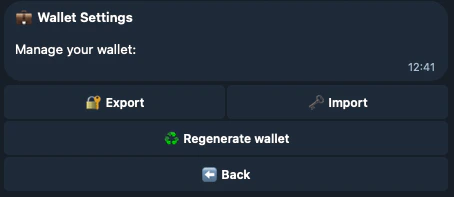
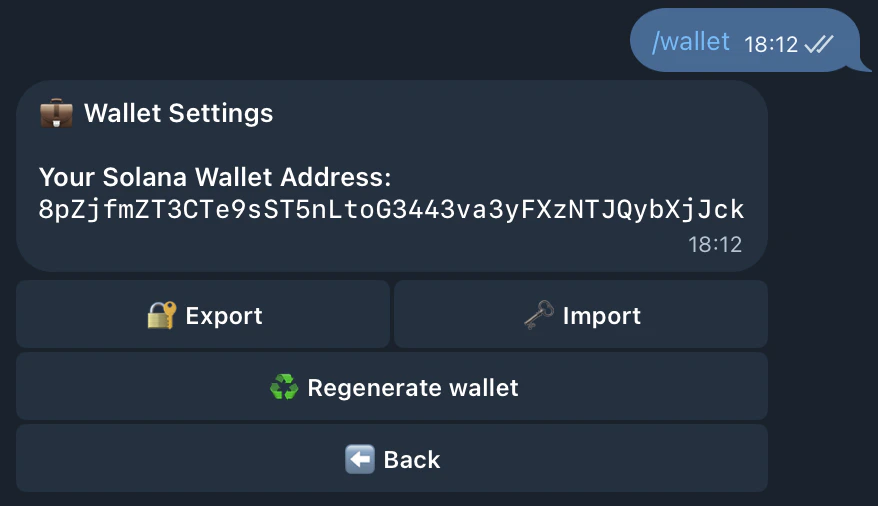 From here you can:
- Export your private key
- Import an existing wallet
- Regenerate a new wallet
Export Your Private Key
Step 1: Generate Export Link
- 🔓 Export private key
- A secure, one-time link is generated (valid for 5 minutes)
Step 2: Open the Link
- 🔓 Open export page
- Your private key is decrypted only in your browser - it never leaves your device
Step 3: Save Your Key
- Copy the private key shown
- Import it into your wallet:
Never share it with anyone
Import an Existing Wallet
Step 1: Generate Import Link
- 🗝️ Import private key
- A secure, one-time link is generated (valid for 5 minutes)
Step 2: Open the Link
- 🗝️ Open import page
- Paste your private key in the secure import page
- Confirm the import
- Your wallet will be linked to the bot
After importing, the bot will use that wallet. Your old bot wallet will no longer be used.
Regenerate Your Wallet
Create a completely new wallet. Important: Backup your current wallet first!
Important: - Regenerating creates a NEW wallet - Your OLD wallet remains in Privy but the bot
stops using it - Move any funds from your old wallet before regenerating
How Export and Import Work
The bot uses Privy’s secure infrastructure with HPKE encryption:
- Export: Your private key is encrypted with your browser’s public key and sent to you. Only your browser can decrypt it.
- Import: You paste your private key in the browser, which encrypts it before sending to the server. The server imports it securely to Privy.
All encryption happens in your browser - your private key never travels unencrypted. 
