The bot supports multiple wallets per user, each managed securely by Privy. You can create, rename, archive, delete, import, and export wallets. One wallet is always designated as active and is used as the default for all operations.
Accessing Wallet Settings
Open wallet management from the main menu:
- Main menu -> Settings -> Wallets
Or send the /wallets command directly.
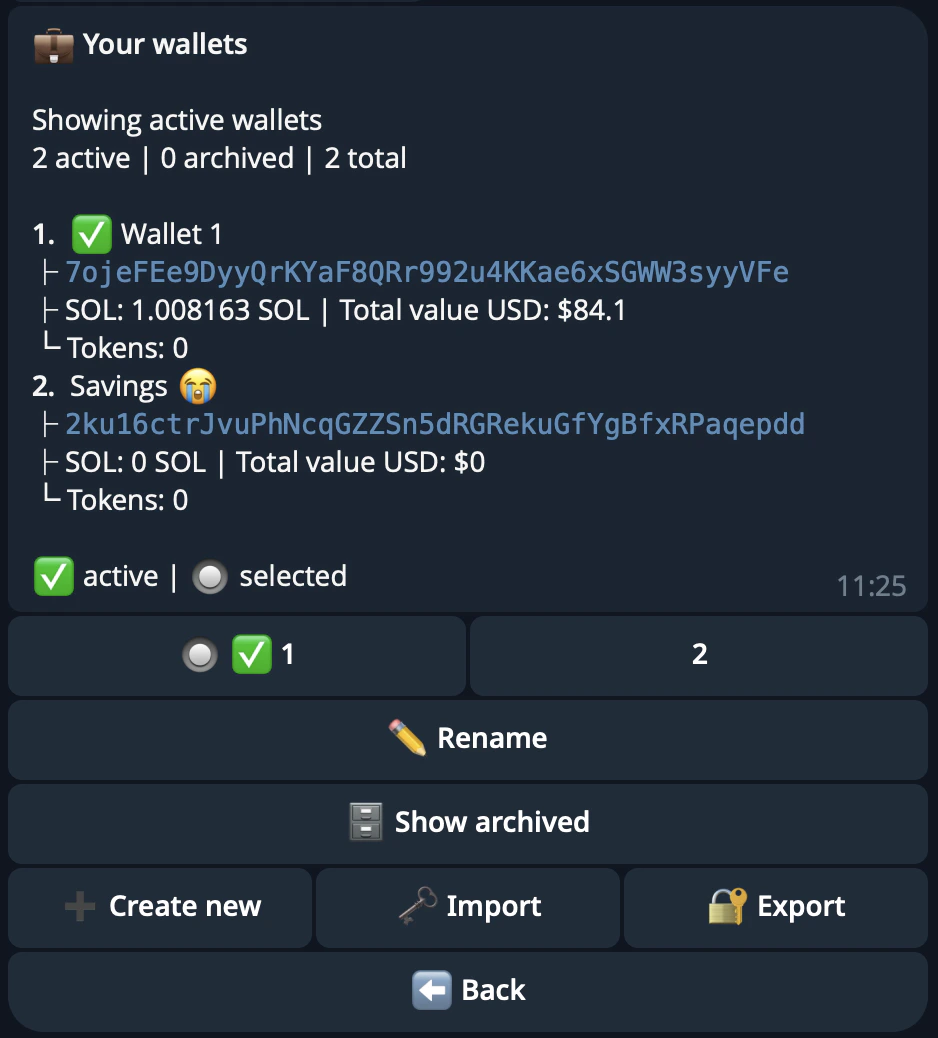
Wallet List
The wallet list shows all your wallets with their SOL balance, token count, and total USD value. Wallets are sorted by total USD portfolio value in descending order.
| Element | Description |
|---|
| Active wallet | Marked with a checkmark. Used as the default for all operations. |
| Archived wallet | Hidden from the active tab. Can be restored at any time. |
| Counts bar | Shows “X active | Y archived | Z total” at the top. |
| Active / Archived tabs | Toggle between active and archived wallets with buttons. |
| Pagination | 5 wallets per page with navigation buttons. |
Create Wallet
Tap Create new to generate a fresh Privy keypair.
Select Active Wallet
Tap Set active on any non-archived wallet to make it your active wallet. The active wallet is the default for all trading, sniping, copy trading, withdrawals, and other operations.
Rename Wallet
Tap Rename on any wallet to change its display name.
- Names must be between 1 and 20 characters
- Emoji are supported
Archive / Unarchive
Archiving hides a wallet from the active tab without deleting it.
- Tap Archive on any wallet to move it to the archived tab
- Tap Unarchive on an archived wallet to restore it to the active tab
You cannot archive the currently active wallet. Switch to a different active wallet first.
Delete Wallet
Deletion is permanent and includes several safeguards. Deletion is blocked if:
| Condition | What happens |
|---|
| It’s the active wallet | You must switch to a different active wallet first. |
| Referenced by configs | Sniper or copy trader configs using the wallet are listed. Remove them first. |
| Has non-dust token holdings | Holdings are listed. Transfer tokens out before deleting. |
Export Private Key
Step 1: Generate Export Link
- Export private key
- A secure, one-time link is generated (valid for 5 minutes)
Step 2: Open the Link
- Open export page
- Your private key is decrypted only in your browser — it never leaves your device
Step 3: Save Your Key
- Copy the private key shown
- Import it into your wallet:
Never share your private key with anyone.
Import Wallet
Importing adds another wallet to your account. It does not replace your existing wallets.
Step 1: Generate Import Link
- Import private key
- A secure, one-time link is generated (valid for 5 minutes)
Step 2: Open the Link
- Open import page
- Paste your private key in the secure import page
- Confirm the import
- The wallet is added to your wallet list
The imported wallet appears alongside your other wallets. You can set it as active at any time.
Wallet Selector
Several features include a wallet selector that lets you pick which wallet to use for a specific operation. The wallet selector appears in:
- Trading — choose which wallet to buy or sell from
- Holdings — view holdings for a specific wallet
- Sniper — assign a wallet to a sniper config
- Copy Trader — assign a wallet to a copy trade config
- Referral claim — select which wallet receives referral payouts
- Withdraw — choose which wallet to withdraw from
The active wallet is always the default, but you can switch to any non-archived wallet within each feature.
How Export and Import Work (HPKE)
The bot uses Privy’s secure infrastructure with HPKE (Hybrid Public Key Encryption):
- Export: Your private key is encrypted with your browser’s public key and sent to you. Only your browser can decrypt it.
- Import: You paste your private key in the browser, which encrypts it before sending to the server. The server imports it securely to Privy.
All encryption happens in your browser — your private key never travels unencrypted and the bot never has access to it. 
